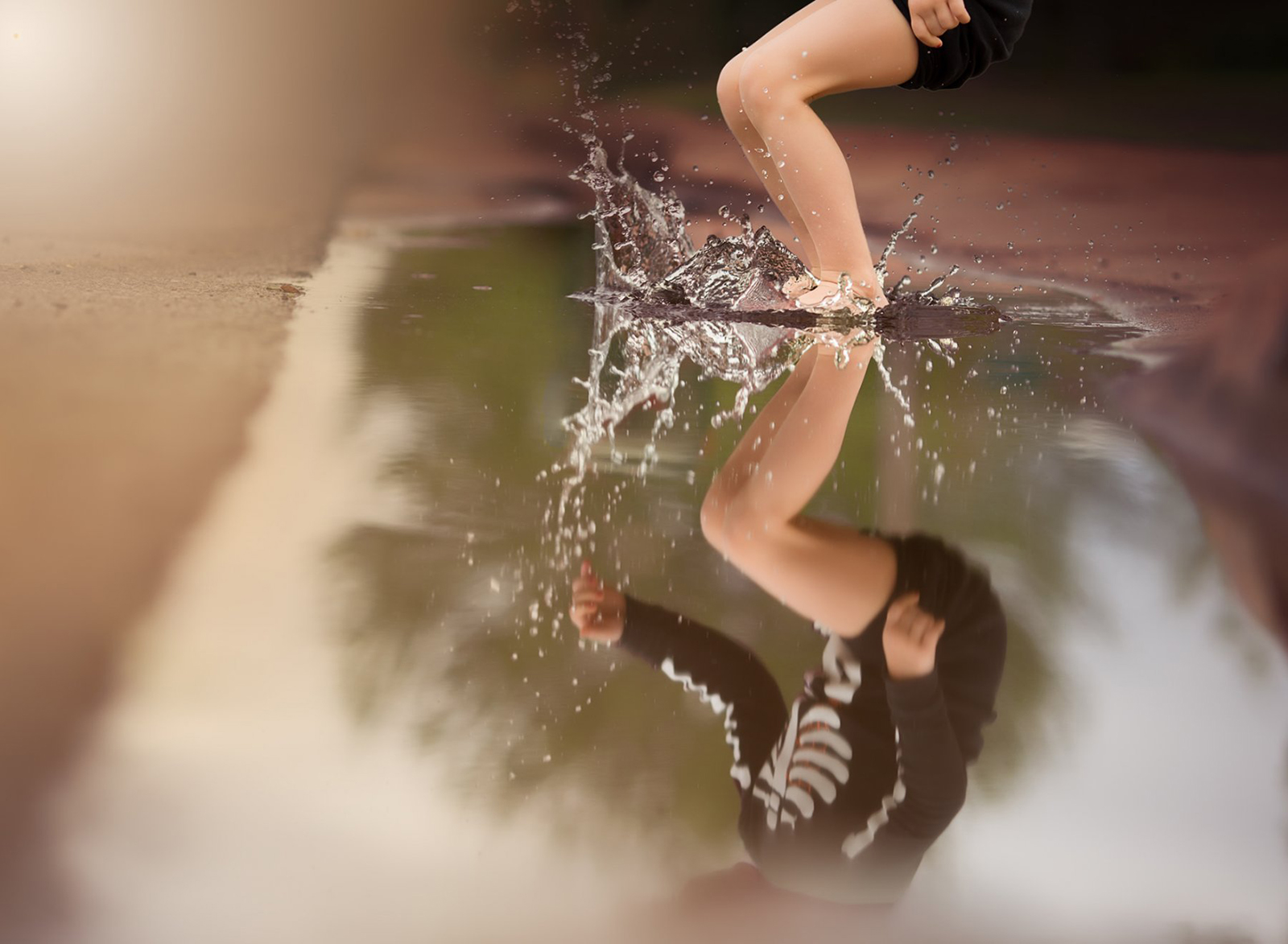
7 ways to make photographing kids 10 times easier

Kids can be hard to photograph.

They’re constantly moving, sometimes cranky, and often difficult to direct.

As much as I adore those whimsical candids of my children playing, I still really want a couple great smiling shots of my kids (and I know my clients expect that, too).

Over the last seven years of photographing kids and three years of taking photos of my own, I’ve learned a bunch of tricks to make the process easier. Today I’m going to share seven of my best tips to do so. Some may sound ridiculous, but I promise they work!

1. Prep

Whether you’re taking photos of your own kids in the backyard or you’re shooting photos for a client, prep is important.

The most important pieces of preparation? Sleep and food.

It probably sounds obvious but I promise you it’s a total game changer. My kids are much more willing to cooperate after they’ve eaten and napped.

If you’re taking pictures of someone else’s kids, you’ll want to make sure to communicate this with them first thing.

Here’s a quick list of what I tell parents to do beforehand:

Keep it positive.

Have parents prep kids that they’re having some fun family time playing games and singing songs. “Oh, and there will be a nice lady there taking photos of us.”

Prioritize mealtime and naptime.

We want everyone happy for those beautifully lit golden hour photos (at home, I try to capture my kids playing in the backyard right after dinner).

Feel free to bring snacks along but leave them in the car.

I’ve allowed snacks at a shoot before and kids end up getting distracted and attached to their goldfish in a neon green snack catcher.

Pack the bug spray and tissues.

Bugs can really cramp a photoshoot and so can a runny nose. We all know how frequently the snotty noses happen.

On that note, if a child is really under the weather, let me know. I’ve had my share of photographing kids with ear infections and it never ends well. I always tell clients I’d be happy to reschedule if baby wakes up with a fever.

How to get kids to have fun getting their picture taken.

2. Familiarize kids with the camera

If I’m taking photos for someone else, when I first meet the kids I try to not have my camera out and instead ask their name, how old they are, and ask their favorite TV show or character. This information also comes in handy throughout the shoot.

After I get to know them, I take the camera out and let them touch it, play with the buttons, and show them what a picture of them looks like on the screen.

Then I pull out Mr. Frog, a lens puppet that fits onto the front of my camera (bought on Amazon). I know… it’s silly and many photographers are anti-lens puppets but I have kids who remember Mr. Frog from a year ago and can’t wait to take more photos. I can swallow my photographer pride for that.

If you’re taking photos of your own kids, they’ll probably be more accustomed to the big camera but I’ve found that letting my own kids hold the camera and even take pictures of their siblings has made them more comfortable and natural when I’m holding taking pictures.

How to get kids to have fun getting their picture taken.

3. Be silly

My biggest secret to getting natural smiles from kids is to be completely ridiculous (which comes way too naturally to me). I’ve learned most of these tricks from my own kids so I try to put them in a position where they can’t help but smile.

Some fun things I’ll say:

  • Do I have three noses or four noses?
  • Does mommy have green hair?
  • Does daddy have purple boogers?
  • (To older kids) Are you married? Do you have a girlfriend?
  • Where does [insert kids favorite TV character] live?
  • Don’t smile! (this one works like a charm for my feisty 3-year old)

You get the idea. Sometimes I’ll play peekaboo, sing songs, and dance around. I’d be remiss if I didn’t mention to use potty humor with boys.

The secret to capturing the genuine smiles during these ridiculous moments is to make sure you take the photo right after the kids laugh or make a funny face. They’re always smiling naturally right after these moments.
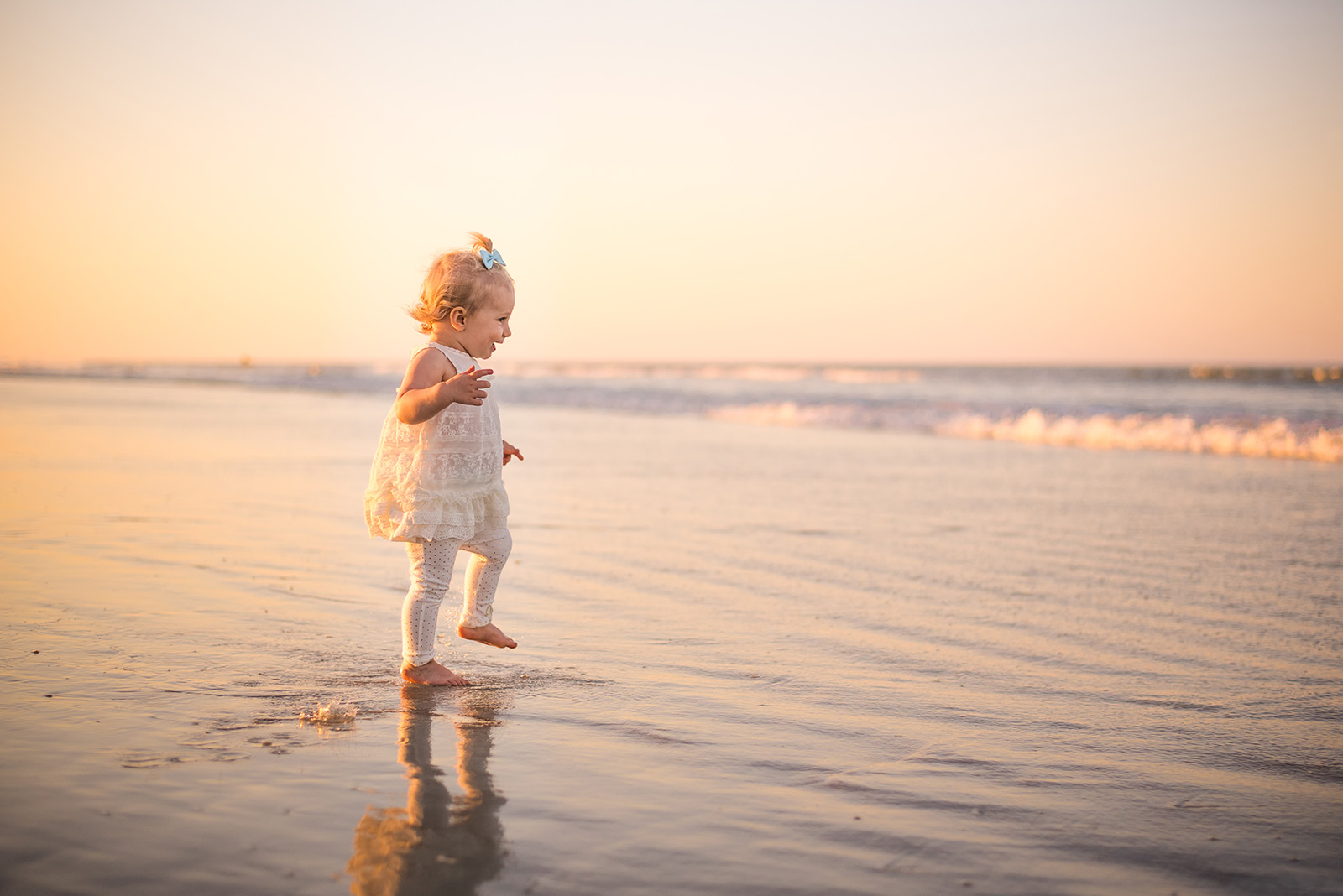
How to get kids to have fun getting their picture taken.

4. Sibling interaction

A great way to get kids to smile naturally is to have them interact with their siblings. When I do this with my kids and clients I have them play tickle monster, run and hug, hop on one foot, run to the tree and back, skip down the path holding hands, etc.

Again, don’t stop snapping! Ask kids to look your way immediately after the action for the natural smile you’re looking for. I also give them parameters to keep everyone in the shot and keep it appropriate (i.e. “stay within this circle” or “you have glue keeping your knees together!” for little girls with dresses).

For the last few minutes of the session, I encourage kids to get on the ground and play (with parent’s permission of course). Lay side by side, wrestle, tickle, pyramid, big hugs, you get the idea. You’ll need to get down there with them to get the eye-level perspective – those typically end up being my favorite photos from a session.

Sibling interaction with toddlers at a newborn sessions is obviously trickier. Older siblings are still adjusting to so much newness so I always try to snag these shots early in the session while I’m still fun and intriguing. Ha!

If you’re photographing your own kids, try having a friend or grandparent assist you with directions. Ironically, toddlers are much more likely to listen in this case. If they’re not feeling up for holding the new baby or lying down next to them, I just let toddlers interact with the newborn naturally. I’ll ask, “Where’s Cameron’s nose? Her hair?” or “What does baby smell like?”
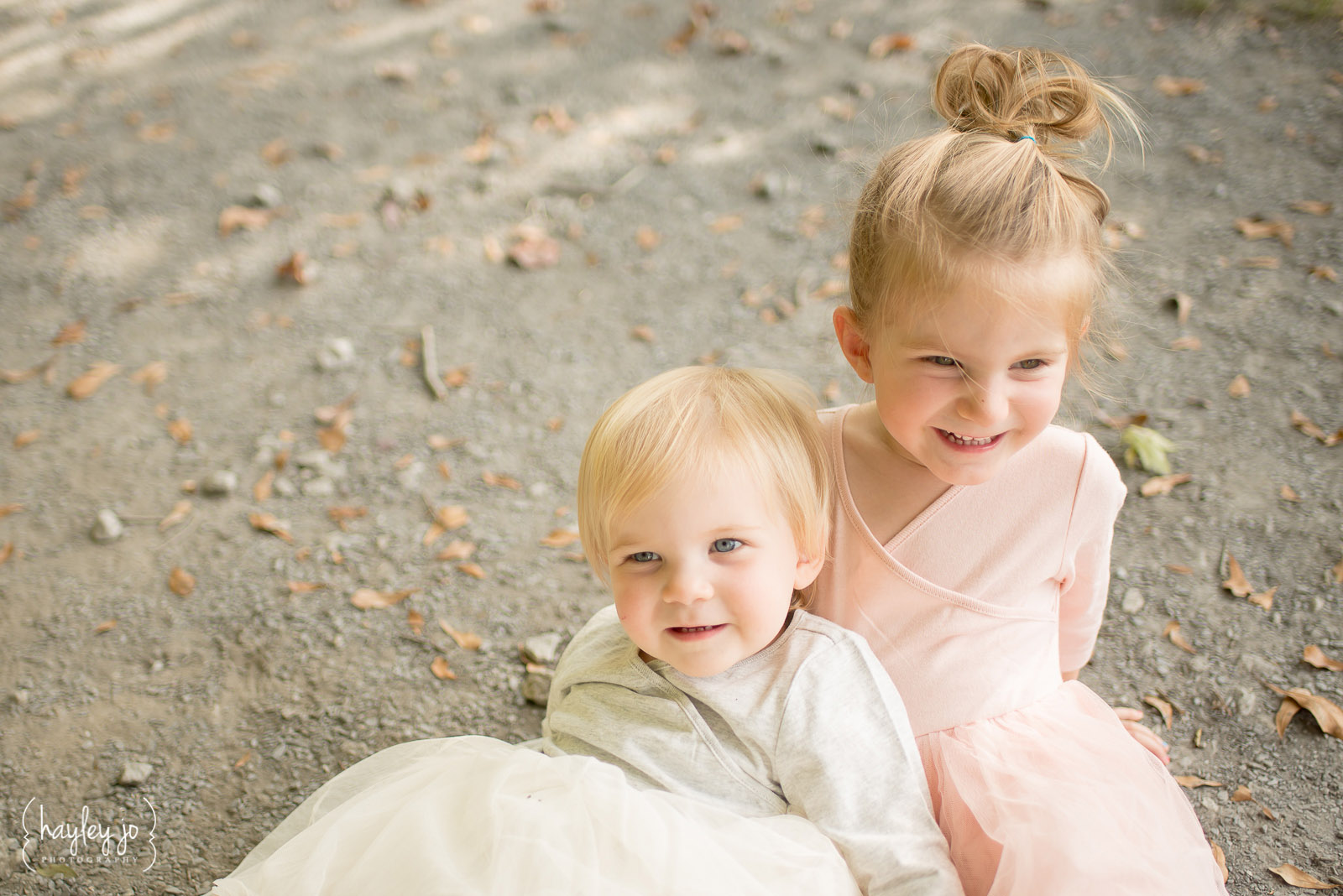
How to get kids to have fun getting their picture taken.

5. Encourage play

Some of the best smiles I’ve ever gotten from my kids have been by following them around while they’re playing. If the kids want to play in the gravel rocks, follow them and then ask to see what they have. Sometimes they’ll look back up at you with a serious face holding a rock and it’s a beautiful photo.

During these moments, you can encourage them towards play. Ask to see how high they can jump and get that great photo of them smiling afterwards.

I’ve gotten the best reactions from my kids when I treat the photoshoot like playtime rather than a chore. I try to make them feel like they’re having fun and playing rather than listening to instruction. That’s where you’ll find those natural smiles.

How to get kids to have fun getting their picture taken.

How to get kids to have fun getting their picture taken.

6. Give breaks

I never force photos when it’s clear kids are over it (as opposed to bribing them or letting parents get frustrated).

When I start to notice someone is getting bored or antsy, I’ll suggest they take a quick break. I’ll either let them take a few minutes to play while I snap some candids or take some time to photograph other members of the family.

If you’re taking these photos of your own family, I suggest letting the child that’s bored or frustrated take a few minutes to play on their own while you take photos of another sibling or do some photos with different combinations of the family. Sometimes if they see the rest of the family take a picture, they’ll want to join back in on their own.

How to get kids to have fun getting their picture taken.

7. Gear/settings

As far as technical settings go, I’m a manual shooter so I’ll share those numbers first (my current body is a Nikon D750). If you’re not manual just yet, aperture “A”priority will do you just fine.

In manual mode:

Move to continuous focus because we all know how much kids move around. Also, use a higher shutter speed of at least 1/500. I prefer more crisp subjects as opposed to capturing blurred motion so this is where I start. For one child, I use an aperture of f/1.8. For 2 kids, I use f/2.8 and go up from there as people are added to the photo.

In aperture priority mode:

I’d set a wide open aperture, f/1.8 or f/2.8, to achieve that creamy, blurry background. Make sure your ISO is low enough to allow for a fast shutter speed as well to capture those wiggly bodies. Better yet, start with Auto ISO and see how that looks.

Lens choices:

My favorite portrait lens for capturing kids is my Nikkor 50mm f/1.8. It’s wide enough to redirect kids if needed but still gets all those lovely crispy details. If I’m doing shots of a family all together I switch to an 85mm (this is hands down my favorite outdoor portrait lens right now) as I’m further away but I have the parent’s help keeping kids in the shot. If I’m working with just toddlers, I try to bring a bench or chair for them to sit on to help keep them in place (for a minute at least!)

How to get kids to have fun getting their picture taken.

Working with kids is certainly not easy but I appreciate the challenge.

Capturing these sweet natural smiles is one reason I love what I do so much! It’s all about making them feel as comfortable as you can and relating to them. Don’t be afraid to be silly, too.

What things have you done to get these genuine smiles from your kids?

The post 7 ways to make photographing kids 10 times easier appeared first on Clickin Moms.


Clickin Moms

Posted in Photograpy How To | Tagged , , , , | Leave a comment

How to Photograph a Solar Eclipse

Solar Eclipse

With the upcoming total solar eclipse coming to North America on August 21, 2017, you might be wondering how you can take advantage of this once-in-a-lifetime opportunity to document and photograph this unique event. While photographing a solar eclipse might not sound like a big deal, there are a few very important considerations you have to keep in mind to avoid damage to your camera equipment or to your eyes. In this article, we will take a closer look at where you would want to physically be at the time of totality, what equipment you should have on hand, what safety precautions to take before, during and after the solar eclipse, and what framing and composition aspects to consider. Keep in mind that totality will only last a couple of minutes, so if you are not fully prepared, you might miss the opportunity to photograph this rare phenomenon.

[Read More…]

Photography Life

Posted in Photograpy How To | Tagged , , | Leave a comment

20 must-use editing tools in Lightroom and Photoshop

Whether you’re a beginner opening up Photoshop or Lightroom for the first time or a more seasoned photographer, this collection of editing tips from the pros will leave you trying out a few new things in your digital darkroom.

Lightroom editing tips:

The Graduated Filter

In Lightroom, I use the Graduated Filter to enhance directional light. I place the Graduated Filter on the light source and move the Exposure slider just a touch and at the same time, use the Graduated Filter to deepen shadows to pop that directional light even more!

In the examples provided, you can see in the before photo that the light is in front of the little girls face to the right but could use some help to be brought out. In the after photo, you can see the beam of light more clearly as it now makes a path to her.

Sarah Kossak

before

after

I love to use the Graduated Filter in Lightroom to enhance my clouds. This tool allows me to enhance the depth, bring back the exposure and details that are often lost when shooting for exposure on my subjects.

You simply click the Graduated Filter, drag the filter on your image and play with the different sliders until you achieve the look you desire.

Danielle Awwad

before

after

The Clarity slider

One of my favorite Lightroom editing tips is adding clarity when converting to black and white. This can bring out texture and details, especially with hair, eyes, freckles in portraits, as well as water droplets and other elements with texture.

You can add clarity globally as well as with a brush to add extra clarity in specific areas. In this photo, I raised clarity +35 globally, then brushed on extra clarity on her eyes and freckles.

Kelley Krohnert

before

after

Straightening a photo

I use this trick in most of my in-home sessions as a quick fix to straighten my images. If you go down to Transform and then Auto, it will automatically straighten the photo and lines and is such a time saver!

Erica Williams

before

after

Split Toning

I love to use Split Toning to enhance the shadows and highlights of an image. This image was taken at sunset, so I wanted it to really have an organic glow. After brightening this image just a bit, I went to Develop and then Split Toning and added some warmth to it by applying an orange tone to the shadows at about 8% saturation.

Jen Bilodeau

before

after

HSL Panel

When I am editing images that were shot in direct sun and include greenery and blue sky, I like to play with the Saturation and Luminance sliders in the HSL Panel to really make the colors pop.

I will typically decrease the saturation of yellow by 15 to 20 points to keep the grass from looking too neon, and then increase the saturation of blue by 20-30 points. Sometimes I even adjust aqua by a few points, to enhance the blue of the sky.

Then if it still needs some pop, I will increase the luminance of the greens by 15-20 and sometimes decrease the blue and aqua by a few points to give the sky that bright happy blue color that we love to see during the day

Jonica Weiler

before

after

When I was a beginner, I had a breakthrough in editing when I learned to control the colors I wanted in my photos. A great way to do the is with the sliders in the Color Panel. In this photo, I disliked the bright yellow and green. I took down the saturation of both, reduced the red saturation on her arm where she was sunburned, added grain, and used the Clarity Brush.

Play with the sliders until you figure out what colors are pleasing to your eye. Remember, it’s all subjective and it’s your art, so don’t be afraid to try something different.

Vanessa Brack

before

after

Whites slider

When I want to make a subject pop in the frame, one of my go-to tricks is a radial filter and/or adjustment brush paired with an aggressive Whites slider setting in Lightroom.

I find that the selective brightening with the Exposure slider can look unnatural if used aggressively, potentially even creating a telltale halo or introducing noise to brightened shadows. However, because the Whites slider only targets the brightest tones, it leaves the shadows alone and adds fantastic punch and separation to my highlights. Here, the only difference between Before and After are a few Radial Filters with the Whites slider set at +100:

Sarah Wilkerson

before

after

The Angle tool

I love using the Angle tool in Lightroom to straighten my horizon lines, found under the Crop and Straighten tools in Lightroom. You simply click the Angle tool and drag a line on the horizon in your image. This tool straightens your entire image for you in just one little step.

Danielle Awwad

before

after

Dehaze slider

When converting to black and white in Lightroom, I love to use the Dehaze slider to increase the contrast and bring out the tones in an image. Here is an example where the Dehaze slider has been increased to +51.

Lindsay

before

after

Flip

I do my best to compose well in camera, however, sometimes once I pull an image into Lightroom I’ll find that I prefer a flip of my composition. Luckily this is really easy to do in LR. In the main menu I select Photo then scroll down to Flip Horizontal. Done. Super easy and quick!

Gina Yeo

before

after

Blue Primary slider

When I edit a picture taken during the golden hour in Lightroom, I love to increase the Blue Primary saturation in the Camera Calibration panel to warm up my picture. It will make everything glow without making it too orange, which I find can often happen when increasing the temperature. I will also often lower the blue luminance in the HSL panel to bring out that beautiful blue sky.

Julie Audoux

before

after

Tone Curve

In Lightroom, I like to use the Tone Curve to add contrast to my images and help them pop a bit. To do this, I make a slight S shape on the curve by bringing the highlights up, and the shadows down. A little bit goes a long way here, and the results are pretty incredible. In the examples below, the only difference is a Tone Curve adjustment.

Jennifer Kielich

before

after

Distortion slider

I don’t own a fisheye lens, but sometimes I like to pretend that I do. In Lightroom, I simply play with the Distortion slider in the Lens Correction panel so that it creates a rounded horizon line.

When doing this, always watch out that it does not distort your subject, however. I will do this when I have several frames of the same pose and want to add variety to a session or to add a little spice to a fun picture.

Julie Audoux

before

after

Photoshop editing tips:

Liquify tool

In Photoshop, I like to use Liquify to even out/straighten a grass line in the background. Simply duplicate your background layer, go to Filter, and select Liquify. Select the Forward Warp tool, then, using a large brush, gently push down on the side that needs lowered (or up on the side that needs raised). Once it looks level, click OK and you’re done! You can add a layer mask to that layer if you need to mask anything off that was affected that you didn’t want moved.

Chelsie Cannon

before

after

Adding sun flare

One of my favorite tricks in Photoshop is adding sun flare to an image. Once you have imported your picture into PS and have made all your other adjustments, you simply go to the menu and click on Filter. Then, scroll down to Render and click on Lens Flare.

A Lens Flare box will pop up and give you a few options on the type of lens flare you would like to add. Once you have chosen your type of flare, you will see a crosshair on your image in the flare box. Simply move the crosshair to where you would like the flare to start. You also have the ability to adjust the brightness slider to get the flare exactly as you like. Last, click on “OK” and you are good to go.

Karyn Olsson

before

after

Gradient Fill layer

I like using a Gradient Fill layer in Photoshop to gently brighten my subject and pull my viewer’s eye to the center of the frame.

To add the Gradient Fill layer, make sure you have white selected as your color, then go to Layer > New Fill Layer > Gradient. Then click OK. I choose the Radiant Gradient with the angle at about 30. I then change the opacity of the layer to around 10-15%. It’s a subtle change but you can play around with it to suit your photos!

Bonnie Cornelius

before

after

Sometimes I like to give my photos a soft, dreamy feel, yet I want my subject to pop. The way I achieve that in Photoshop is by adding a Gradient Fill to my image. I click on the Gradient Fill option and then once the window pops up, I click on the Gradient Color options for a custom selection.

I first choose a Color Fill by double clicking on the Color Fill box and then using the selection tool to choose a color from the photo’s background. I then click on the 2nd Color Fill box and choose a color that is slightly lighter than the first color I chose to give me a subtle gradient. Once I’m happy with those choices I click OK then select Radial Gradient and click the box that says Reverse. I scale the size of the gradient to how I like it (different for each photo) and click OK. I then erase the gradient off of my subject and usually decrease the opacity to eye.

Megan DeShazo

before

after

Clone and Stamp tool

I love to use the Clone and Stamp tools in Photoshop to delete distractive elements, accidental subjects in the frame, or clone parts of the background to add on to atmosphere. It’s simple and fast to use.

To start, just go to the left side panel and choose the Clone or Stamp tool. With the Stamp tool, you’ll need to choose sample from the background what you wan to clone on another part of the image with pressing Alt enter. With the Clone tool, this will simply generate the background by merging surroundings (just choose the size at the top according to what part you want to clone out). You can modify your picture as much as you want.

Olga Levien

before

after

Hue/saturation layer

In Photoshop I like to add a Hue/Saturation adjustment layer and select the yellows to change the color of my grass. I prefer my grass bluer so I move the hue towards the right and then I usually deepen the tone of the grass by moving the Lightness slider to the left. Occasionally I will add or subtract saturation. After I change my grass color, I make sure to brush it off any skin or other yellows in the image with a layer mask.

Mickie DeVries

before

after

Lasso tool

While I love candid shots of kids, Moms typically like to have a few photos in their gallery of everyone looking at the camera (preferably smiling!) and we all know that as the kids increase in number, that proves to be more difficult to catch. While shooting, I make sure to have at least a few good shots of everyone so that, if need be, I can use the Lasso, Copy/Paste tool in Photoshop to swap heads from photos later.

Using the Lasso tool, I circle around the subject that I wish to move, typically circling more of the background than I need, then I copy. Opening the photo I wish to place it in, I paste my selection. Then I lower the opacity of the new layer and line up the subject as closely as possible. I zoom in and erase back the unneeded area that was copied and flatten image.

Megan DeShazo

before

after

In situations where I want symmetry on the left and right I use the Lasso tool to select the desired section and then copy and paste it in place (Edit > Copy, Edit > Paste). I then activate the selection by hitting Command + T (on a Mac) and then Flip it horizontally (Control + Click on a Mac). Then just slide it to the other side of the image and mask off any lines that appear. This is great to create paths in fields, etc.

Julie Kulbago

before

after

Warm Photo filter

In Photoshop, I always add a Warm Photo filter at the end of my edit. I simply click on the Photo filter Layers, choose Warm Photo Filter and then, I play with the opacity. I am usually between 15% and 50%, depending on the image.

Annick Paradis

before

after

Painting

When removing distracting elements from an image, start by painting the element the same color as the surroundings. When we remove the color, the object will blend in and it will require much less cloning or healing to “remove” the object.

Clean up any remaining hints of the object using the clone or healing tools.

Kate Luber

before

after

The post 20 must-use editing tools in Lightroom and Photoshop appeared first on Clickin Moms.


Clickin Moms

Posted in Photograpy How To | Tagged , , , , | Leave a comment

Happy 100th Anniversary Nikon!

Nikon 100th Year Anniversary

It is a big day today at Nikon, since the company is celebrating its 100th year anniversary. Nippon Kogaku K.K. was founded on July 25th 1917 and the company has been making everything from consumer cameras to industrial optical equipment ever since. As part of this important day and celebration, Nikon’s president Kazuo Ushida gave an important statement that reassures the future of the company, particularly when it comes to addressing the “rapidly changing consumer needs”. With the announcement of the development of the Nikon D850, the company wants its customers to know that it is working on a next generation DSLR that will exceed their expectations. That’s a bold claim for sure, and many of us Nikon shooters cannot wait to see what Nikon is planning with the D850. There is a lot of excitement surrounding the camera and we at PL really hope to see a true D810 successor! And let’s not forget that Nikon has also promised to release a mirrorless camera, something many of us also are very excited about. For now, sit back, relax and enjoy some of the great videos Nikon put together for its 100th year anniversary.

[Read More…]

Photography Life

Posted in Photograpy How To | Tagged , , , | Leave a comment

Nikon D850 Development Announced

Nikon D850 Teaser

Tomorrow is the 100th year anniversary of Nikon. While we have been patiently waiting for the company to announce something new for this big date, it looks like we will only be seeing a teaser in the form of the Nikon D850 “development announcement”. Unfortunately, aside from the teaser video (see below) that does not reveal much aside from the ability to shoot 4K video and 8K timelapses, no additional information is provided as part of this development announcement, which is quite unfortunate! Perhaps Nikon is still going through some changes to the camera features, or perhaps there are other reasons for not giving us any further details, but it will be a painful few months of waiting for additional details on this highly anticipated camera…

[Read More…]

Photography Life

Posted in Photograpy How To | Tagged , , , | Leave a comment