How to photograph your child’s dance show or play

If you have the chance to get backstage at your child’s dance shows, do it.

It’s the perfect opportunity to take your camera along and capture some memories from the behind the scenes. (With permission from the dance school of course)

Luckily my girls usually perform their shows at the theater two or three times over a few days so that gives me the chance to sit and enjoy the show in the audience at least once. Then for the rest, I’ll be backstage with my camera.

I want to share some tips with you on how to successfully capture some beautiful moments in what can be a tricky scenario.

1. Lenses

I prefer to use prime lenses. A 35mm and an 85mm are great choices for this.

However, it does get a bit fiddly trying to swap lenses every so often. By the time you’ve switched your lens the moment is over and you’ve missed your shot.

I managed to get around this by taking two cameras with me, one with a 35mm and the other with an 85mm but I would definitely recommend using a zoom lens such as a 24-70mm as it’s easier and less weight to carry around.

2. Settings

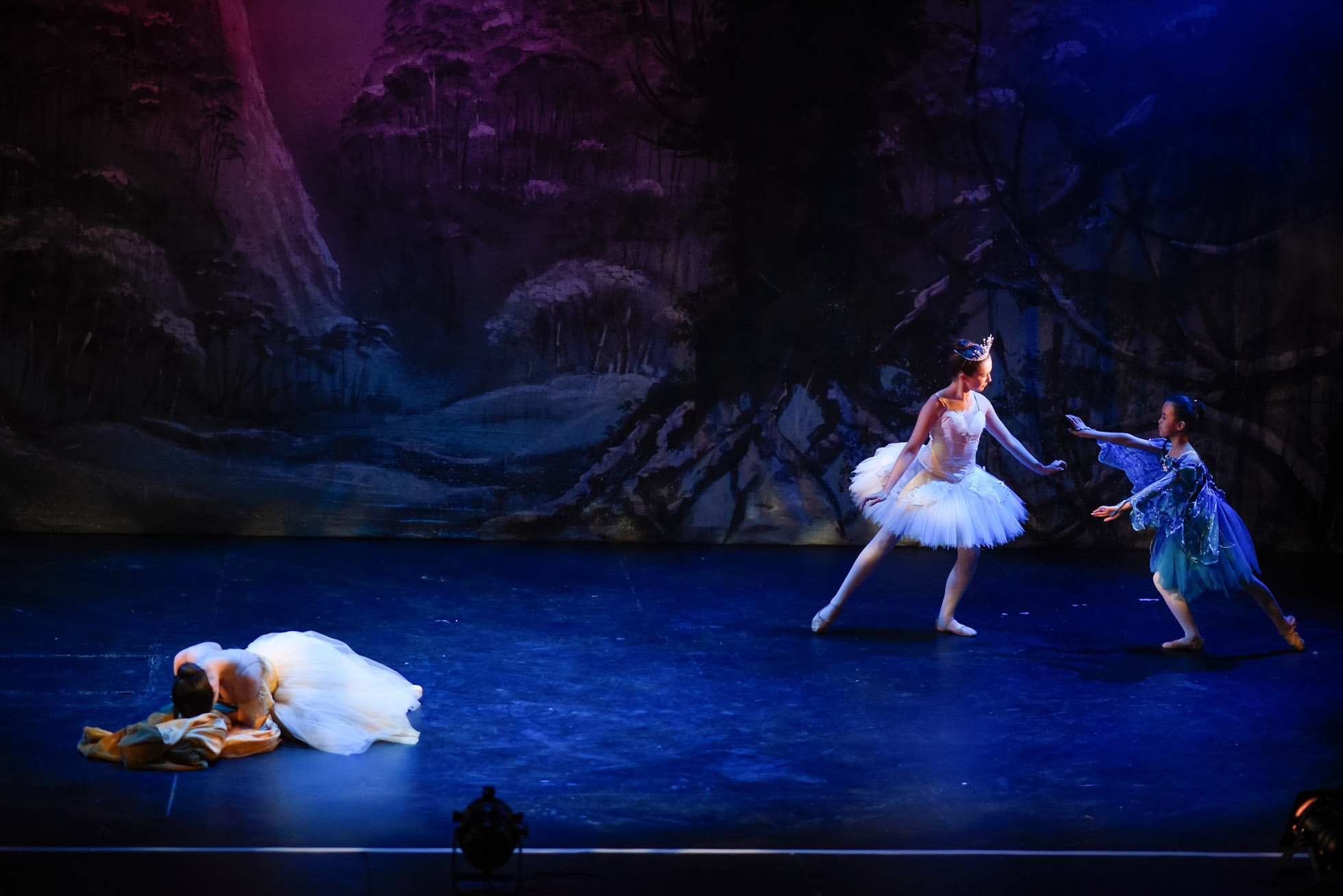
Stage lighting can be challenging. It’s going to be dark, it’s also going to be very bright. I recommend shooting RAW in manual mode with spot metering so you have full control over your exposure.

I set my ISO around 2000, aperture around f/2 and adjust my shutter speed as needed. I don’t like to go too slow with my shutter speed though as the dancers move around quickly at times and I like to keep my photos sharp.

I usually set my white balance to auto as the lighting changes so much it’s one less thing to have to worry about and adjust whilst shooting.

3. Perspective

Change your perspectives throughout. Move around and get shots from different angles. Use a wide angle lens for group shots on stage or zoom in for a close-up.

If you have the chance to get backstage at your child’s dance show or play, it’s the perfect opportunity to take your camera along and capture some memories from the behind the scenes.

It’s also important to get an audience perspective but this can be difficult as there’s no room for you to stand in the auditorium while the audience is seated. Rehearsals are perfect for these type of shots as the seats are all empty and you can stand wherever you need to.

If you have the chance to get backstage at your child’s dance show or play, it’s the perfect opportunity to take your camera along and capture some memories from the behind the scenes.

If you have the chance to get backstage at your child’s dance show or play, it’s the perfect opportunity to take your camera along and capture some memories from the behind the scenes.

Try to capture some of the true in-between moments that happen backstage. It can get so busy with everyone rushing around with costume changes and it’s part of the event you want to capture. Be sure to stay hidden and out the way but keep watching for those moments.
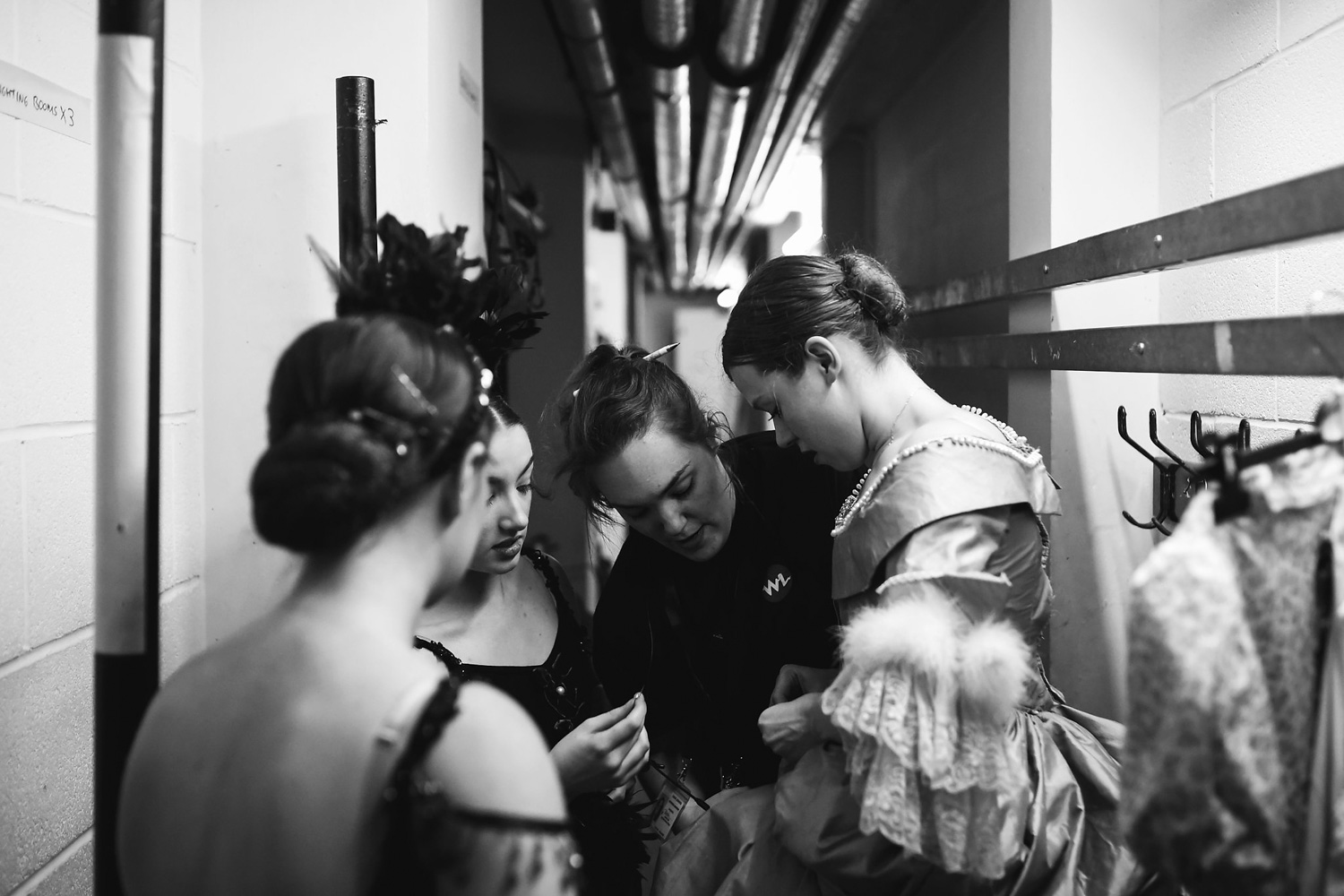
If you have the chance to get backstage at your child’s dance show or play, it’s the perfect opportunity to take your camera along and capture some memories from the behind the scenes.

Don’t forget the details! A well composed detail shot can also tell part of the story.

If you have the chance to get backstage at your child’s dance show or play, it’s the perfect opportunity to take your camera along and capture some memories from the behind the scenes.

If you have the chance to get backstage at your child’s dance show or play, it’s the perfect opportunity to take your camera along and capture some memories from the behind the scenes.

4. Composition

Placing your subject and other elements in certain places in the frame can make a very pleasing photograph and helps to create a good storytelling image.

Look around to find different objects, lines or doorways to use as framing. Try using the rule of thirds or adding negative space. Using these techniques helps to draw the viewer’s attention to your main subject.

This is also a great opportunity to get some creative shots using backlighting to create silhouettes.

If you have the chance to get backstage at your child’s dance show or play, it’s the perfect opportunity to take your camera along and capture some memories from the behind the scenes.
Using the rule of thirds.

If you have the chance to get backstage at your child’s dance show or play, it’s the perfect opportunity to take your camera along and capture some memories from the behind the scenes.
Using negative space to help frame my subjects.

If you have the chance to get backstage at your child’s dance show or play, it’s the perfect opportunity to take your camera along and capture some memories from the behind the scenes.
By adding other important elements into the frame such as the red curtain, helps give a sense of environment. This was taken right after the first act when the curtain dropped.

5. Editing

Adding some contrast and decreasing the blacks and shadows in Lightroom/PS is pretty much all is needed. I also add some noise reduction to reduce the grain caused by the high ISO. If I find I’ve underexposed slightly to save highlights, I’ll need to bump up the exposure in post too.

If you have the chance to get backstage at your child’s dance show or play, it’s the perfect opportunity to take your camera along and capture some memories from the behind the scenes.

If you have the chance to get backstage at your child’s dance show or play, it’s the perfect opportunity to take your camera along and capture some memories from the behind the scenes.

Converting to black and white is also a favourite.

If you have the chance to get backstage at your child’s dance show or play, it’s the perfect opportunity to take your camera along and capture some memories from the behind the scenes.

If you have the chance to get backstage at your child’s dance show or play, it’s the perfect opportunity to take your camera along and capture some memories from the behind the scenes.

If you have the chance to get backstage at your child’s dance show or play, it’s the perfect opportunity to take your camera along and capture some memories from the behind the scenes.

Join the Clickin Moms photography forum

The post How to photograph your child’s dance show or play appeared first on Clickin Moms blog: Helping you take better pictures one day at a time.


Clickin Moms blog: Helping you take better pictures one day at a time

Posted in Photograpy How To | Tagged , , , , | Leave a comment

Using Lightroom’s Graduated and Radial Filters with the Adjustment Brush

The graduated and radial filters which allow you to make localized adjustments to portions of your photo bring Lightroom’s capabilities even closer to those of Photoshop. But did you know that these filters can be even further refined with the use of adjustment brushes found within each filter’s panel?
before

The graduated and radial filters which allow you to make localized adjustments to portions of your photo bring Lightroom’s capabilities even closer to those of Photoshop. But did you know that these filters can be even further refined with the use of adjustment brushes found within each filter’s panel?
after

Adobe Lightroom is my preferred editing program.

I love that all of the adjustments and tools available to me are visible and easily accessed and used from one screen for instantaneous results.

The inclusion of the graduated and radial filters which allow you to make localized adjustments to portions of your image bring Lightroom’s capabilities even closer to those of Photoshop.

But did you know that these filters can be even further refined with the use of adjustment brushes found within each filter’s panel?

If you are familiar with Lightroom, you probably know that both the radial and gradient filters function similarly, allowing you to place the filter on a portion of your image and apply exposure, color, and other adjustments to only that portion of your image.

The difference between the two is merely the shape of the filter. The graduated filter is linear while the radial filter is elliptical.

The only downside of the filter is that it can cover a part of your image you don’t want it to affect. For example, when I applied a graduated filter to darken the sky of this image:

The graduated and radial filters which allow you to make localized adjustments to portions of your photo bring Lightroom’s capabilities even closer to those of Photoshop. But did you know that these filters can be even further refined with the use of adjustment brushes found within each filter’s panel?

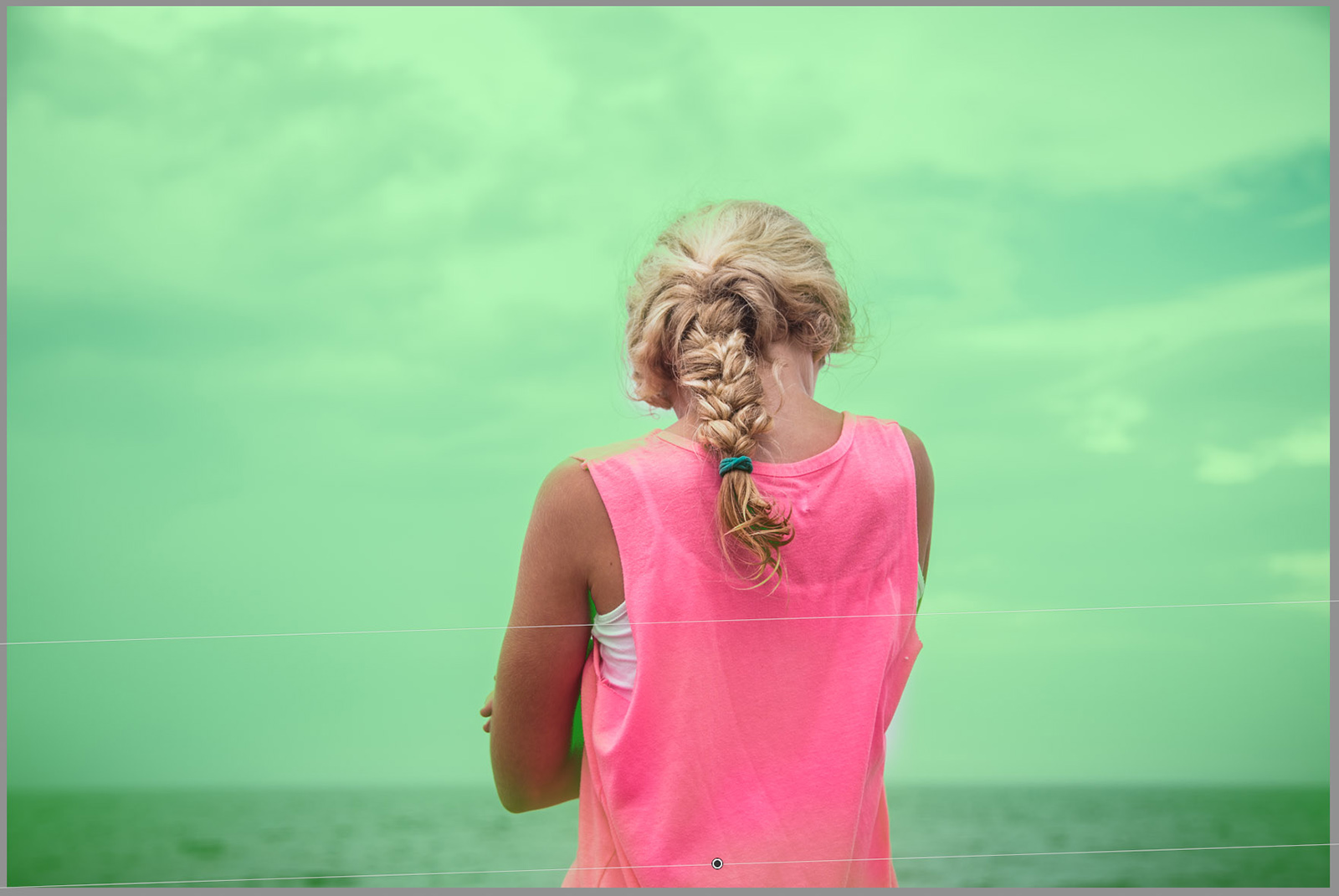
The mask covered my subject:

The graduated and radial filters which allow you to make localized adjustments to portions of your photo bring Lightroom’s capabilities even closer to those of Photoshop. But did you know that these filters can be even further refined with the use of adjustment brushes found within each filter’s panel?

The graduated and radial filters which allow you to make localized adjustments to portions of your photo bring Lightroom’s capabilities even closer to those of Photoshop. But did you know that these filters can be even further refined with the use of adjustment brushes found within each filter’s panel?

Now the sky looks great but now my subject is too dark.

The graduated and radial filters which allow you to make localized adjustments to portions of your photo bring Lightroom’s capabilities even closer to those of Photoshop. But did you know that these filters can be even further refined with the use of adjustment brushes found within each filter’s panel?

Here’s the secret. Did you know you can erase parts of these filters or add to them with their adjustment brushes?

Here’s how it works:

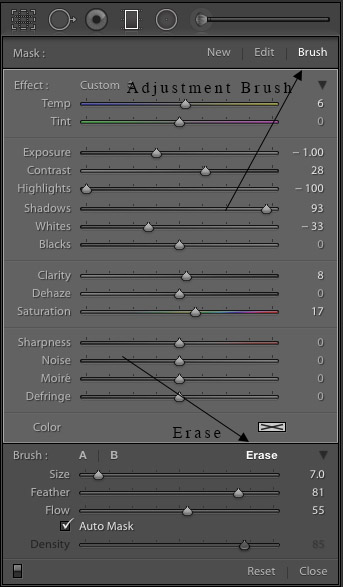
Once your radial or graduated filter is set, in this case the graduated filter, click on the Brush tool in the filter’s panel and select the “Erase” brush. After selecting the “Brush” option, you can also press and hold the alt/option key to activate the erase brush.

In this instance, I used medium density brush with medium flow and a fair amount of feathering.

The graduated and radial filters which allow you to make localized adjustments to portions of your photo bring Lightroom’s capabilities even closer to those of Photoshop. But did you know that these filters can be even further refined with the use of adjustment brushes found within each filter’s panel?

Activate the overlay (“O”) and use the Erase brush to remove the filter from those areas where you do not want it.

As you go, you can toggle the overlay on and off to see how things are looking, paying careful attention to the edges. Sometimes the auto mask option is helpful here, if you have trouble getting a clean edge, try turning it on.

Don’t worry if you accidentally remove too much. Just brush it back on with an appropriate brush by clicking Brush A or B and setting it for the appropriate density, flow and feathering.

Generally, it is a good idea to start with a low flow and build up for more precise refinements.

Here is the filter after I have erased it from my subject:

The graduated and radial filters which allow you to make localized adjustments to portions of your photo bring Lightroom’s capabilities even closer to those of Photoshop. But did you know that these filters can be even further refined with the use of adjustment brushes found within each filter’s panel?

And here’s the before and after:

The graduated and radial filters which allow you to make localized adjustments to portions of your photo bring Lightroom’s capabilities even closer to those of Photoshop. But did you know that these filters can be even further refined with the use of adjustment brushes found within each filter’s panel?
before

The graduated and radial filters which allow you to make localized adjustments to portions of your photo bring Lightroom’s capabilities even closer to those of Photoshop. But did you know that these filters can be even further refined with the use of adjustment brushes found within each filter’s panel?
after

Watch this video for a demonstration of the erase brush in action.

Join the Clickin Moms photography forum

The post Using Lightroom’s Graduated and Radial Filters with the Adjustment Brush appeared first on Clickin Moms blog: Helping you take better pictures one day at a time.


Clickin Moms blog: Helping you take better pictures one day at a time

Posted in Photograpy How To | Tagged , , , , , , | Leave a comment

5 Ways to use one Lightroom tool that will make your photos pop

I don’t like to play favorites.

Really, I don’t.

The love I have for all the panels and filters and brushes in Lightroom is equal, just as the love I have for my children is equal. Except that’s a lie.

The radial filter has my heart, but my love is justified. This handy little tool can do all the things. All. The. Things. But let’s back up just a bit.

When I first began my journey in post processing, I learned the basics and I steadfastly stuck to them. There was no venturing off into the Effects Panel or dabbling in Split Toning.

However, it wasn’t long before I started to get a little curious about what all those other mysterious tools could do for my photos. They shouldn’t be that intimidating, right? It was then that I met my true love, the radial filter.

Lightroom’s radial filter can be found in the Develop module towards the top right of your screen. It’s indicated by a circle and it is found between the Adjustment Brush and the Graduated Filter.

To use the radial filter, make sure it is selected and then simply choose your effect. The great thing here is that you’re not limited to just one; select as many as you like.

Want to increase exposure and clarity? No problem!

Want to decrease your shadows but bring up the highlights a bit? You got it!

Next, go to your image and click and drag a circle or oval around the section where you are wanting the effects to take place. Keep in mind that you can place your effects inside the circle/oval or outside of it. To place your effects inside the circle, make sure to check the Invert Mask box.

When I first started experimenting with radial filters, I mainly used them to slightly darken the areas around my subject, and I still love it for this purpose.

It wasn't long before I started to get a little curious about what all those other mysterious tools could do for my photos. They shouldn’t be that intimidating, right? It was then that I met my true love, the radial filter.
Without Radial Filter.

It wasn't long before I started to get a little curious about what all those other mysterious tools could do for my photos. They shouldn’t be that intimidating, right? It was then that I met my true love, the radial filter.
With Radial Filter.

Settings for above image:

  • Radial Filter around my son.
  • Exposure -0.87
  • Shadows +100
  • (Even though I decreased the exposure in order to make my subject pop, I brought up the shadows to keep some of the detail in the branches of the trees.)

It is such a quick, easy and effective way to make your subject subtly pop.

When I use the radial filter, I almost always leave the Feather slider around 90-95 and drag my circle to be quite large. This just means that the effect you are applying will be heavily feathered and will subtly and gradually change.

Try adding a radial filter and taking the Feather slider all the way down to 0 and you will see what I mean.

It wasn't long before I started to get a little curious about what all those other mysterious tools could do for my photos. They shouldn’t be that intimidating, right? It was then that I met my true love, the radial filter.

Settings for image above:

  • Radial Filter – Feather 0
  • Highlights -77
  • Clarity +82

It wasn't long before I started to get a little curious about what all those other mysterious tools could do for my photos. They shouldn’t be that intimidating, right? It was then that I met my true love, the radial filter.

Settings for image above:

  • Radial Filter – Feather 94
  • Highlights -77
  • Clarity +82

By making a large circle and keeping my feather up in the 90s, the desired effect will be much more natural looking and a lot less noticeable.

I used the radial filter to bring down exposure and shadows around my subject for a long time before I started getting creative and really pushing the limits to see what this one little tool can do for me. But once I started experimenting with it, I was blown away with the possibilities.

So without further ado, here are five ways to use the Radial Filter that will transform your images with just a few clicks.

1. To brighten eyes

Yes, I know I can brighten eyes with the adjustment brush, and I do sometimes. But unless I am working on an extreme closeup, I tend to the like the results better using a radial filter.

You can use the Iris Enhance Effect with a radial filter, but sometimes simply lifting the shadows on each eye is sufficient. Like I mentioned before, I will keep the feather slider nearly all the way up and make my circles larger than my subjects eyes.

It wasn't long before I started to get a little curious about what all those other mysterious tools could do for my photos. They shouldn’t be that intimidating, right? It was then that I met my true love, the radial filter.
Without Radial Filter.

It wasn't long before I started to get a little curious about what all those other mysterious tools could do for my photos. They shouldn’t be that intimidating, right? It was then that I met my true love, the radial filter.
With Radial Filter.

Settings for image above:

  • Radial filter around each eye.
  • Exposure +0.77
  • Clarity +10
  • Invert Mask checked.

2. To make my subject pop

I had been using the radial filter for a long time with the intention of making my subject pop by deepening the background, but it took a while before I realized I could do this in reverse as well.

If my background is already the way I like it and I don’t want the shadows or exposure pulled down anymore, it’s time to get to work on my subject. I will frequently lift shadows, and sometimes exposure and clarity too, on my subject if they are caught in the shadows when shooting.

For this image of my son eating a s’more, the details I wanted to capture are lost, but with a few quick radial filters, the image is exactly the way I had it pictured in my mind.

It wasn't long before I started to get a little curious about what all those other mysterious tools could do for my photos. They shouldn’t be that intimidating, right? It was then that I met my true love, the radial filter.
Without Radial Filter.

It wasn't long before I started to get a little curious about what all those other mysterious tools could do for my photos. They shouldn’t be that intimidating, right? It was then that I met my true love, the radial filter.
With Radial Filter.

Settings for image above:

  • Radial Filter around my son’s mouth.
  • Tint -12
  • Exposure +1.25
  • Shadows +47
  • Saturation -23
  • Invert Mask checked.
  • Radial Filter around the s’more.
  • Clarity +100
  • Invert Mask checked.

3. To make my background pop

I do love to make my subject pop, don’t get me wrong. But sometimes a background just begs to be seen and my radial filters are there to help me make sure that happens.

In this image, I loved the texture and color in the reflection on the water, and I really wanted that to be the focus of the image. However, adding a ton of clarity and saturation to the entire image didn’t appeal to me because I wanted to keep the integrity of my son’s skin tones and softness intact.

Radial filter to the rescue!

It wasn't long before I started to get a little curious about what all those other mysterious tools could do for my photos. They shouldn’t be that intimidating, right? It was then that I met my true love, the radial filter.
Without Radial Filter.

It wasn't long before I started to get a little curious about what all those other mysterious tools could do for my photos. They shouldn’t be that intimidating, right? It was then that I met my true love, the radial filter.
With Radial Filter.

Settings for image above:

  • Radial Filter around my son.
  • Exposure -0.64
  • Shadows -44
  • Clarity +54
  • Saturation +69
  • Second Radial Filter around my son.
  • Exposure +1.00
  • Shadows +44
  • Clarity +14
  • Invert Mask checked.

Here’ s another image where I really wanted to play up the fun and whimsical vibe of the background, but didn’t want to ruin my sons’ bodies with a bunch of adjustments that I wouldn’t normally use on them.

The radial filter was perfect to keep them nice and clean while getting a little dramatic with their surroundings.

It wasn't long before I started to get a little curious about what all those other mysterious tools could do for my photos. They shouldn’t be that intimidating, right? It was then that I met my true love, the radial filter.
Without Radial Filter.

It wasn't long before I started to get a little curious about what all those other mysterious tools could do for my photos. They shouldn’t be that intimidating, right? It was then that I met my true love, the radial filter.
With Radial Filter.

Settings for image above:

  • Radial Filter around my sons.
  • Exposure +0.69
  • Contrast +38
  • Clarity +100
  • Saturation +100

4. To selectively change white balance

White balance can sometimes be the bane of my existence. I hope I’m not the only one. It’s even worse when it’s not consistent throughout the frame. Enter the radial filter.

In this particular image, there were two types of light coming in from two different windows with varying warmth. If I warmed up the entire image, my son would be much too yellow. A quick radial filter on the window to the left allowed me to selectively warm up the white balance in that section of the frame as much as I needed to in order to balance out the image.

It wasn't long before I started to get a little curious about what all those other mysterious tools could do for my photos. They shouldn’t be that intimidating, right? It was then that I met my true love, the radial filter.
Without Radial Filter.

It wasn't long before I started to get a little curious about what all those other mysterious tools could do for my photos. They shouldn’t be that intimidating, right? It was then that I met my true love, the radial filter.
With Radial Filter.

Settings for image above:

  • Radial Filter around the window.
  • Temp +100
  • Invert Mask checked.
  • Radial Filter around my son.
  • Exposure +34
  • Shadows +43
  • Invert Mask checked.

5. To hide sore eyes

I’ll do anything to avoid pulling my images into Photoshop. Lightroom for life! But while the cloning tool in Lightroom is adequate, it’s not quite as capable as cloning in Photoshop (or in my case Photoshop Elements).

But I’ve found a way to get rid of eye sores and distractions in Lightroom while avoiding cloning altogether. Can you guess what it is? Yep! A radial filter.

If there is a distracting element in my frame that might be hiding in the shadows, a quick radial filter to lower shadows and sometimes even exposure or clarity will do the trick just fine.

It wasn't long before I started to get a little curious about what all those other mysterious tools could do for my photos. They shouldn’t be that intimidating, right? It was then that I met my true love, the radial filter.
Without Radial Filter

It wasn't long before I started to get a little curious about what all those other mysterious tools could do for my photos. They shouldn’t be that intimidating, right? It was then that I met my true love, the radial filter.
With Radial Filter.

Settings for image above:

  • Radial Filter around the object in the lower left corner.
  • Exposure -0.29
  • Shadows -92
  • Invert Mask checked.
  • Radial Filter around boy in red shorts.
  • Exposure +0.84
  • Shadows +54
  • Invert Mask checked.
  • Radial Filter around boy towards bottom of frame.
  • Exposure +0.93
  • Shadows +58
  • Invert Mask checked.

Everything and the kitchen sink

Sometimes I just want to let loose and go crazy. In life and with my photos. On those days, one radial filter will just not do.

With photos that have a lot of texture and mystery, I like to add many radial filters to adjust different things in different parts of the frame. It’s fun for me to get creative and bump up clarity in certain sections while bringing down highlights somewhere else.

Or maybe I want to really saturate one small section of the frame while bumping up contrast in a different area. This little tool is so handy in helping me bring my artistic vision for a photo to life.

I wouldn’t suggest going this wild on all your photos, but you will know when you come across a photo that will be able to stand up to all the filters you throw it’s way.

It wasn't long before I started to get a little curious about what all those other mysterious tools could do for my photos. They shouldn’t be that intimidating, right? It was then that I met my true love, the radial filter.
Without Radial Filter.

It wasn't long before I started to get a little curious about what all those other mysterious tools could do for my photos. They shouldn’t be that intimidating, right? It was then that I met my true love, the radial filter.
With Radial Filter.

Settings for image above:

  • Radial Filter around my son’s face.
  • Highlights +33
  • Invert Mask checked.
  • Radial Filter around my son’s body
  • Temp +23
  • Exposure -1.90
  • Contrast +24
  • Highlights -27
  • Shadows +100
  • Saturation +51
  • Radial Filter around leaves bottom right.
  • Exposure +0.70
  • Clarity +89
  • Saturation +60
  • Invert Mask checked.
  • Radial Filter around large portion of the left side of the frame.
  • Clarity +89
  • Saturation +71
  • Invert Mask checked.
  • Radial Filter around red leaves toward the bottom of the frame.
  • Clarity +89
  • Saturation +48
  • Invert Mask checked.

In almost all of the instances we’ve talked about here, it’s important to reiterate that I almost always keep the Feather slider around 95 and I drag my circles rather large to keep the effect subtle.

However, there are a few times I will bring the feather slider down in the teens, and that is usually if I’m wanting to add the effect to something that is oval or circular in shape and I need the results to be drastic.

For example, it could be an image shot from above of my son drinking hot cocoa with a heaping amount of marshmallows. I could throw a radial filter on the top of that mug of coffee, bring the feather all the way down and lift the shadows and add all the clarity I want.

The more you play around with this handy little tool, the more you will be able to recognize when and where it will be able to help you achieve your artistic vision.

Now, I’m an old-school, Lightroom 5 kinda gal, but if you are using the Adobe Creative Cloud version of Lightroom, your radial filter has even more options.

After applying your circle, you have the option of masking on even more of the desired effect outside of your circle, and you are also able to erase portions of it inside of your circle. If you have this feature and you love it, don’t tell me about it. I’m clinging to my beloved Lightroom 5 for as long as I can.

So as you move forward with your post-processing adventures, don’t leave the sweet, unassuming radial filter out of your bag of tricks. We covered five ways this tool can transform your images, but if I know my little radial filter, when it comes to it’s capabilities, we’ve barely reached the tip of the iceberg.

Join the Clickin Moms photography forum

The post 5 Ways to use one Lightroom tool that will make your photos pop appeared first on Clickin Moms blog: Helping you take better pictures one day at a time.


Clickin Moms blog: Helping you take better pictures one day at a time

Posted in Photograpy How To | Tagged , , , | Leave a comment

Noise Explained in Photography: The Screaming Camera

Landscape at high ISO with some noise

Noise is a topic in photography that seems built to cause confusion. Case in point: Several years before I bought my first DSLR, I had a point-and-shoot that I really wanted to learn how to use – but I was clueless about photography. When I read online that a high ISO setting “adds more noise” to a photo, naturally, I started thinking that a camera actually grows louder at those settings. I tested this theory by taking two photos at different ISO values, and – I could have sworn it! – the camera’s shutter was significantly louder at the higher ISO. For an embarrassingly long time afterwards, I went around thinking that high ISO values were fine to use, except in museums or cathedrals where silence was required. I doubt that many other people have been so hopelessly misguided about noise, but this article is worth writing regardless. Indeed, there are several aspects of noise that even advanced photographers often misunderstand. So, what is noise in photography, really, and what can you do to minimize it?

[Read More…]

Photography Life

Posted in Photograpy How To | Tagged , , , , | Leave a comment

7 Ways to use leading lines in your photography

One of my favorite ways to improve my composition is by using leading lines.

Leading lines can draw your eye to a subject and create depth in a photo.

Leading lines are everywhere: in nature, in our homes, even on our own bodies. They can be difficult to find at first but with practice you can train your eye to spot them!

1. Roads and paths

Roads and paths are a classic way to use leading lines. Your eye is drawn to where the lines converge on the subject.

When lines begin in the foreground and end in the background, it creates depth and dimension, which makes for a much more interesting photo. You can use sidewalks, walking paths, even the path to your front door to practice.

Leading lines are everywhere: in nature, in our homes, even on our own bodies. They can be difficult to find at first but with practice you can train your eye to spot them!

Leading lines are everywhere: in nature, in our homes, even on our own bodies. They can be difficult to find at first but with practice you can train your eye to spot them!

2. Landscape

Landscape is another effective way to use leading lines outdoors. Look for mountains, ridges, even bushes and trees growing in one direction.

Here you can see the ridge line drawing your eye to the girls, and the stand of trees leading to my daughter in the foreground.

Leading lines are everywhere: in nature, in our homes, even on our own bodies. They can be difficult to find at first but with practice you can train your eye to spot them!

Leading lines are everywhere: in nature, in our homes, even on our own bodies. They can be difficult to find at first but with practice you can train your eye to spot them!

3. Clothes

Clothing choice is often important in photography and using details in the subject’s wardrobe can be overlooked.

In the photo with the little boy, his suspenders converge at his adorable little hands. I wanted to bring attention to the last bits of baby chub and dimples on his hands, and his nails that show hours of play.

The straps on the woman’s dress lead your eye to the delicate curve of her shoulder and back.

Related: How leading lines will improve your photos

Leading lines are everywhere: in nature, in our homes, even on our own bodies. They can be difficult to find at first but with practice you can train your eye to spot them!

Leading lines are everywhere: in nature, in our homes, even on our own bodies. They can be difficult to find at first but with practice you can train your eye to spot them!

4. Linens

Linens, specifically the patterns and shapes, can create interesting leading lines. This is easy to do around your house.

The stripes on the blanket lead you right to the girls’ happy faces.

When you place a subject on the bed, don’t automatically smooth those pleats. Like the comforter under the baby, the pleats can be used as leading lines.

Leading lines are everywhere: in nature, in our homes, even on our own bodies. They can be difficult to find at first but with practice you can train your eye to spot them!

Leading lines are everywhere: in nature, in our homes, even on our own bodies. They can be difficult to find at first but with practice you can train your eye to spot them!

5. Furniture

Around the house, furniture is another way to incorporate leading lines.

The cushions on the couch lead to this sweet mama with her newborn. Notice the window seal behind her is another leading line.

In the second photo, the cushion lines and placing the subject in the v-shape of the couch are used to lead you to the subject.

Leading lines are everywhere: in nature, in our homes, even on our own bodies. They can be difficult to find at first but with practice you can train your eye to spot them!

Leading lines are everywhere: in nature, in our homes, even on our own bodies. They can be difficult to find at first but with practice you can train your eye to spot them!

6. Props

Props can add interest and fun to photos and be strategically used as leading lines.

The guitar strings direct you to the girl and her father playing, and add dimension.

The straight line of the slingshot stands out from the curves of the background, bringing attention to the main subjects of the photo.

Related: Forget the rule of thirds: How I fell in love with center compositions

Leading lines are everywhere: in nature, in our homes, even on our own bodies. They can be difficult to find at first but with practice you can train your eye to spot them!

Leading lines are everywhere: in nature, in our homes, even on our own bodies. They can be difficult to find at first but with practice you can train your eye to spot them!

7. Limbs

Limbs are a unique and fun way to use leading lines.

In the first photo, your eye starts at the woman’s hands and travel up to the lovely color and curve of her shoulder.

In the second photo, the girl’s arm leads you to her gorgeous head of hair.

Leading lines are everywhere: in nature, in our homes, even on our own bodies. They can be difficult to find at first but with practice you can train your eye to spot them!

Leading lines are everywhere: in nature, in our homes, even on our own bodies. They can be difficult to find at first but with practice you can train your eye to spot them!

I can’t wait for you to try these tips! Have fun with it and practice and I know you’ll soon be spotting lines everywhere. I’d love to hear how you find new ways to incorporate lines into your photos!

Join the Clickin Moms photography forum

The post 7 Ways to use leading lines in your photography appeared first on Clickin Moms blog: Helping you take better pictures one day at a time.


Clickin Moms blog: Helping you take better pictures one day at a time

Posted in Photograpy How To | Tagged , , , | Leave a comment